Highlight
If your organization wants to learn or test Microsoft Fabric capabilities but you are afraid of the cost or capacity management, the solution might be time-based ephemeral capacities.
Recently I’ve found that colleagues in my company need Fabric capacities more and more, and not just for projects, but to test the latest announced features, a small proof of concept for a client, verify their concepts or prototypes/scripts, or simply learn. I didn’t want to pay 250 USD per month for a capacity just so that it would be used for an hour or two a day. So I’ve decided to automate it. This post is about my approach and findings.
Ephemeral capacities
The idea is fairly simple. We will use Azure to deploy Microsoft Fabric capacities for a certain amount of hours, and then delete them. Users will be admins so they can assign these capacities to their workspaces at any time.
What happens to my workspace when capacity is deleted?
Microsoft does state that removing capacity will put all items in soft delete state. There is no documented hard delete, or any retention period but from my playing around they seem to stay there for long, I haven’t seen any deletion yet, so it’s perfect for sandbox purposes.
From my testing, after capacity was deleted, I simply requested a new one and reassigned it and everything was working just fine.
When you delete a Power BI Premium, Trial or Fabric Capacity, non-Power BI Fabric items in workspaces assigned to the capacity are soft deleted. These Fabric items can still be seen in OneLake catalog and in the workspace list, but can’t be opened or used. If the workspace that holds these items is associated to a capacity (other than Power BI Embedded) from the same region as the deleted capacity within seven days, the deleted items are restored. This seven-day period is separate from the workspace retention setting.
Ref: https://learn.microsoft.com/en-us/fabric/admin/capacity-settings#delete-a-capacity
Technically this says 7 days to restore your soft-deleted items, but when I was testing it seemed to be longer than that. I’ve had my workspace with no capacity with non-PBI items for longer and they were not removed, and correctly restored after 2+ weeks. Note that this is not a guarantee of anything, but it’s surely a good thing for now.
High level architecture
I’ve decided to follow a similar approach to my previous post on Azure Sandboxes Chatbot with Azure Logic Apps. It allowed me to extend an already existing approach of exposing this automation via Microsoft Teams as a chatbot.
In summary, here is what I wanted to achieve
- Chatbot exposed via a Microsoft Teams user
- Capacities are provisioned for an amount of X hours defined by a parameter (in my current setup I used 4)
- Capacities are shared across users to lower the costs, but the solution supports per-user provisioning via parameter
- Capacities are extended if another user requests them
- Users are added as capacity admins so they can add capacity themselves to their Fabric workspaces
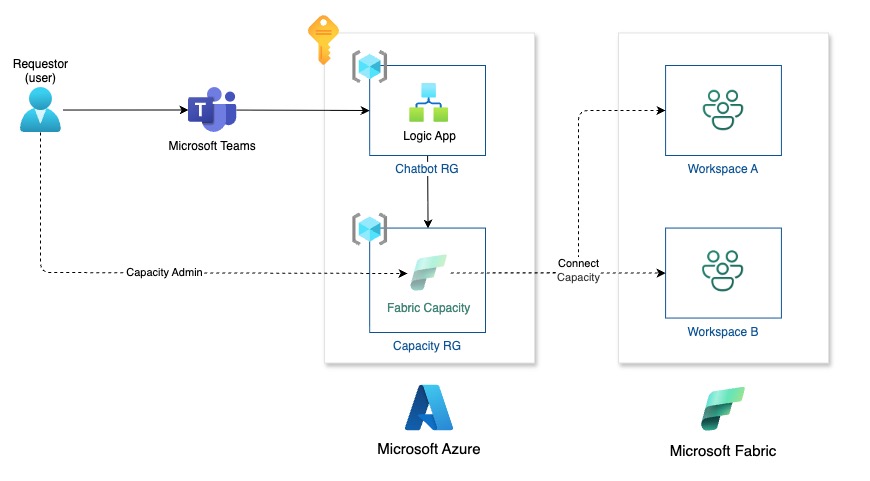
Below is the architecture I used
Components
With the following components
- Logic App - main workflow execution service, this is where the magic happens
- Separate RG where capacities will be provisioned and removed (separate because it’s a good practice)
- All in Azure because it allows creating and deleting capacities very fast, and it bills us per minute
Architectural decision records
Here are decisions that I took under consideration
| # | Decision | Result |
|---|---|---|
| 001 | Use persistent capacity | Too expensive for testing, a single F2 capacity is over 250 USD per month |
| 002 | Use persistent capacity with start/pause automation, instead of creation/deletion | If capacity is not deleted it will stay attached to any workspace created by a user for testing. Since we are not deleting workspaces, after a few tests F2 would simply be attached to too many workspaces and potentially could not work anymore due to its small size. |
| 003 | Random capacity name, vs the same name | Similar to ADR002, I wanted to make sure that resource ID of capacity changes, to ensure it won’t be attached to anything that did exist before |
| 004 | Shared capacity across users or per-user capacity | Both have merits, and since either will work fine depending on your requirements. I added a parameter in the workflow to enable changing this Naming convention- If per-user: azfabricsbx user_name random_number- If shared: azfabricsbx shared random_number |
| 005 | Provision and delete fabric workspaces | I opted out of this because I find it actually kind of cool that artifacts are only soft-deleted when we delete a capacity, and when the capacity is attached back, everything starts working again. It’s a win-win scenario for me. |
Workflow
Let’s go over how this was implemented. For the sake of the blog, I have everything in a single logic app workflow, but a good practice would be to separate it into a few smaller ones.
Workflow logic
This is the summary of what the workflow does
- User writes on Teams
- Logic App picks up the event
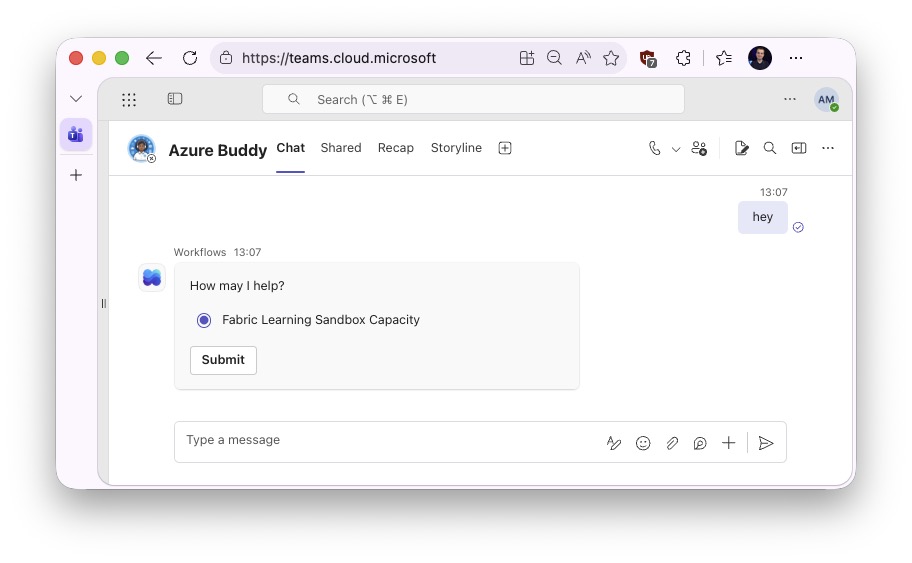
- Sends an adaptive card on Teams with a list of options, in this demo, there is one called “Fabric Sandbox Capacity”
- User selects the option “Fabric Learning Sandbox Capacity”
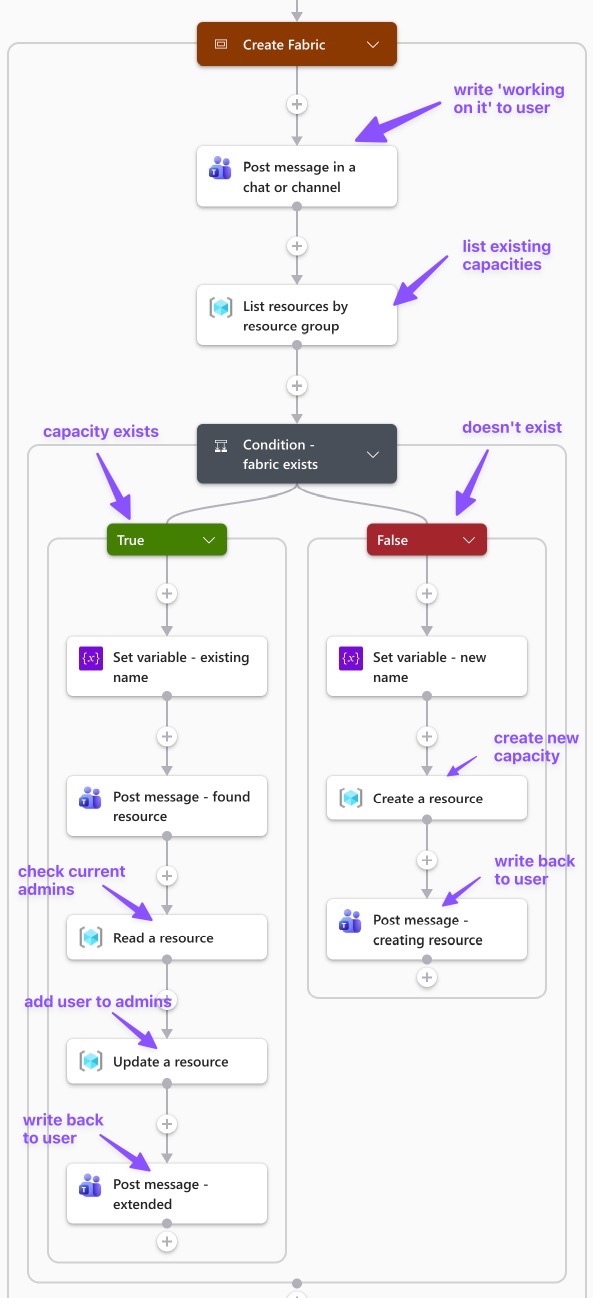
- Logic App checks if a fabric capacity exists
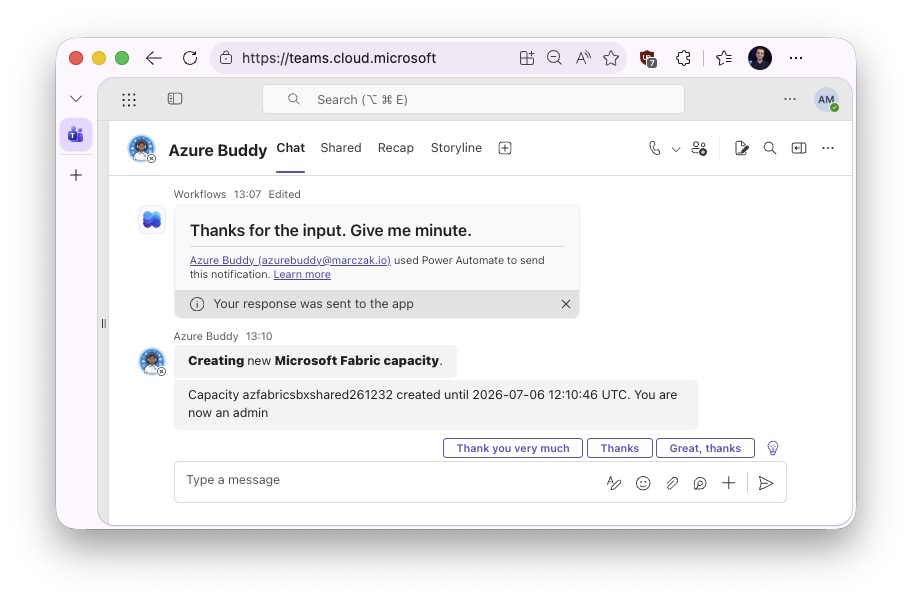
- If it doesn’t, it creates it and adds user as an admin
- If it does, it extends it by X hours (defined by a parameter), and adds user as an admin
- Replies to the user with details
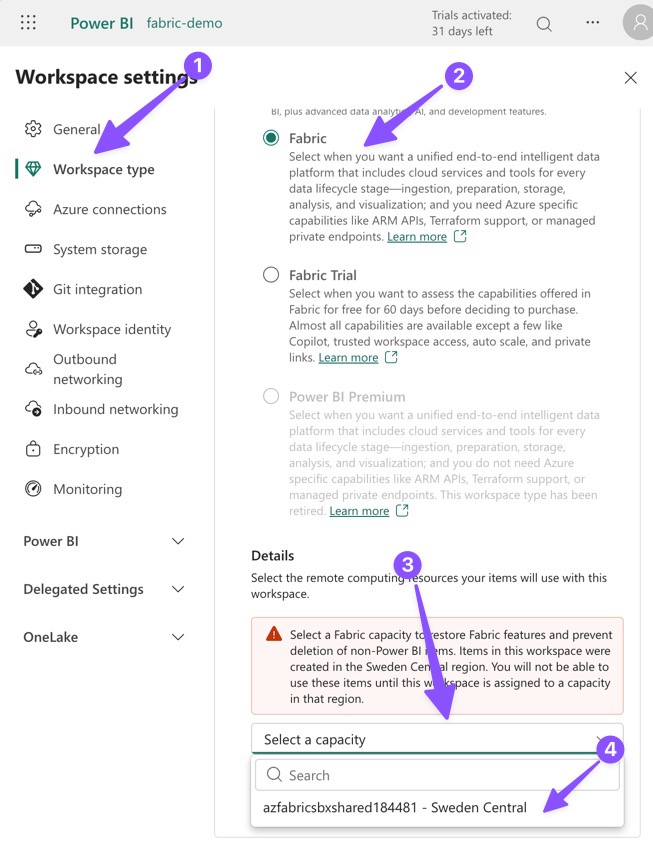
- at this moment, user can go to Microsoft Fabric portal and assign capacity to any workspace they want
- Waits for X hours (defined by a parameter)
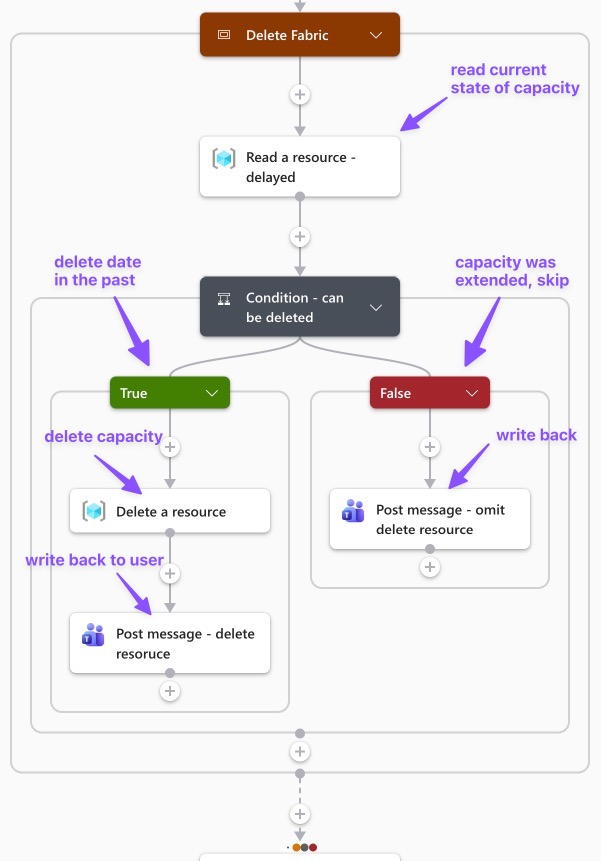
- Checks if the capacity can be deleted, defined by DeleteDate tag,
- if it’s past DeleteDate time, it deletes the capacity,
- if it’s not past DeleteDate time, skips deletion (this means it was extended by another request/session)
- Sends final info to user
Source code?
Yes, here is the source code I’ve exported from Azure Portal. Azure Portal Export is not ideal, so beware.
Workflow in Logic Apps
This is how I’ve built the logic app workflow
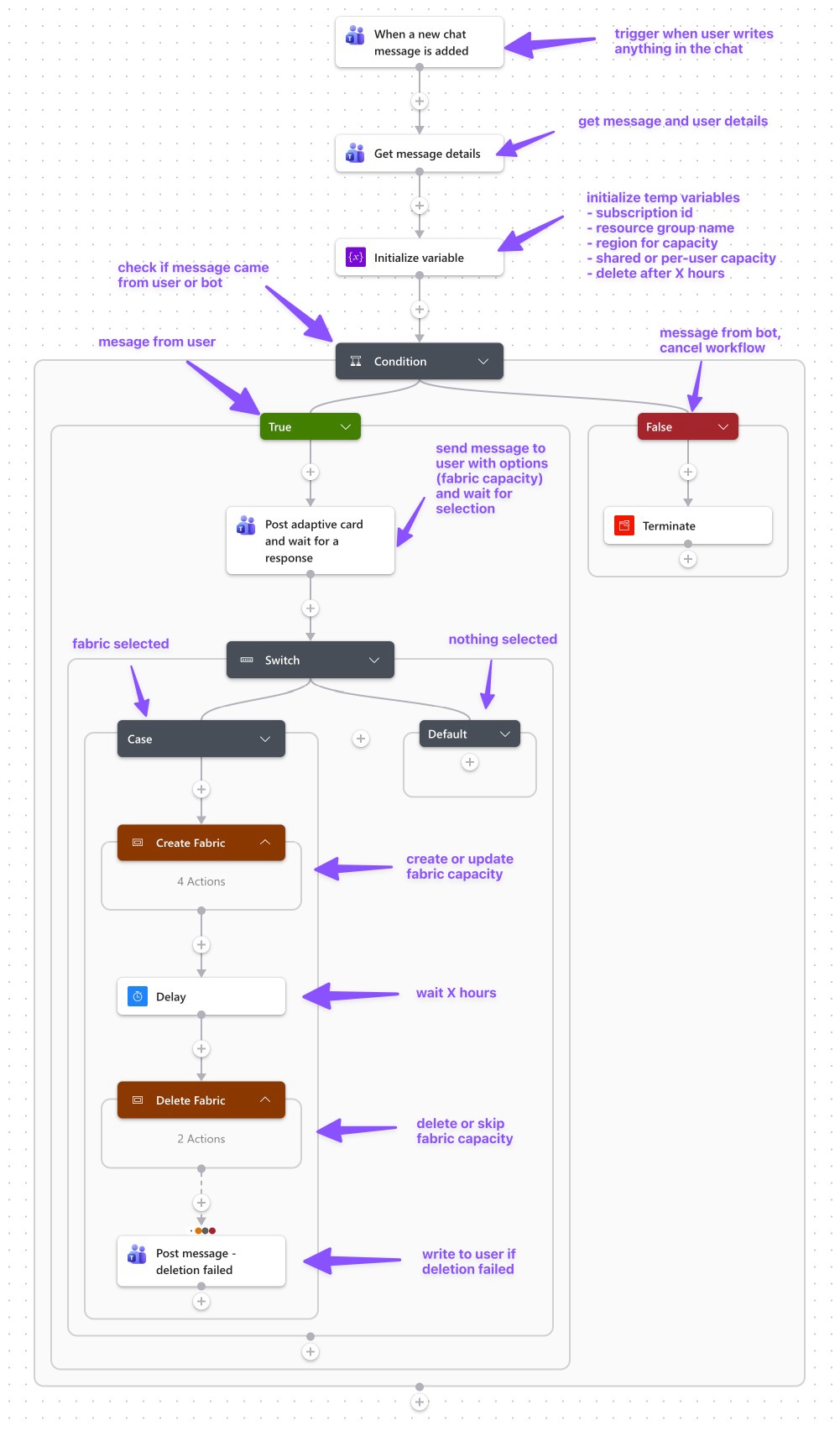
Create Fabric Scope
Delete Fabric Scope
Testing the workflow
So let’s test the workflow
- Say anything to the bot user
![]()
- Select the fabric capacity and click ‘Submit’
![]()
- Go to https://app.fabric.microsoft.com/ and select your workspace, and assign capacity
![]()
- Done and done! Now you can learn about Fabric without worrying about the cost or deletion.
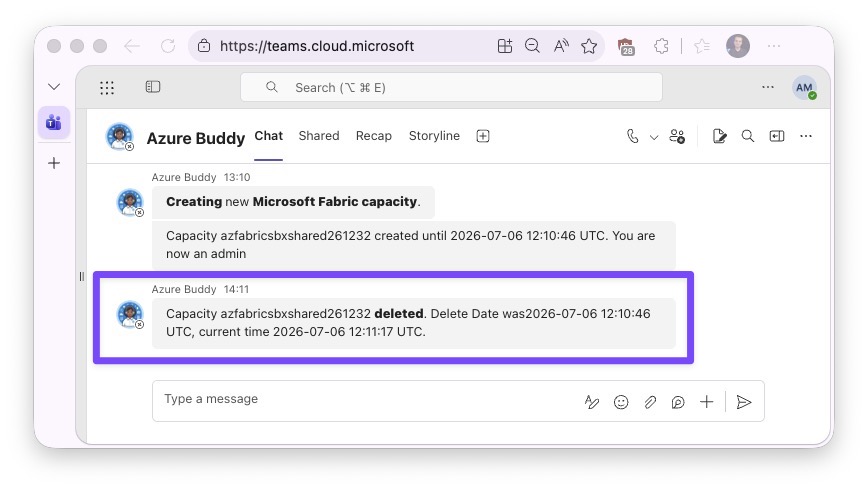
Deletion after X hours
In my case I’ve configured my chatbot to 1 hour, so in exactly one hour I’ve got a message.
Extending the capacities
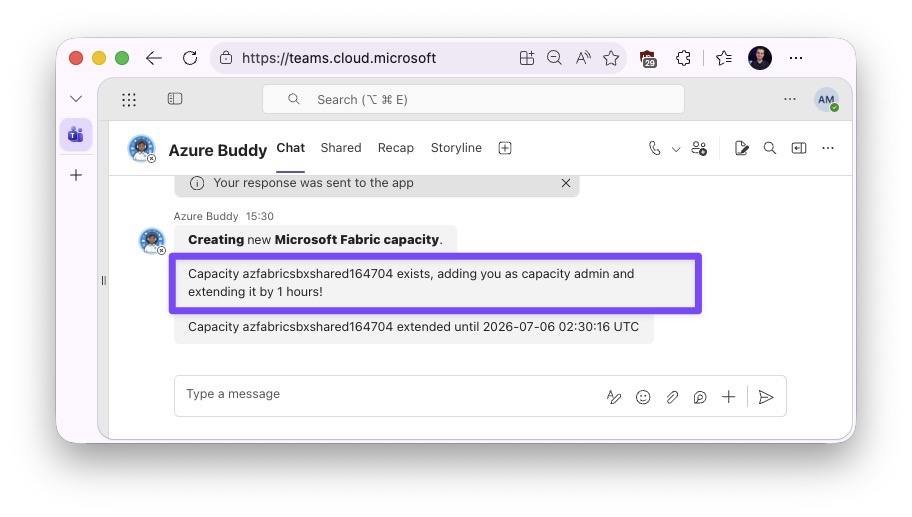
If a user writes to a chatbot requesting a capacity, but the capacity already exists, instead of creating a new one, the chatbot will extend it by X (parametrized) hours.
Enterprise Setup
A few things are worth considering for enterprise-ready setup.
Handling deletion failures
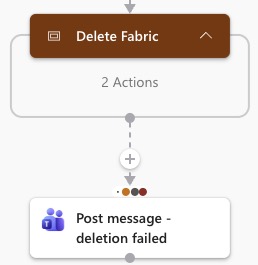
Handling deletion failures is critical in a case like Fabric capacities. You don’t want to get a surprise bill just because automation failed.
A simple and effective approach is handling this within the workflow by adding a post message action on failures, skipped, or timed out runs. Below is a screenshot example.
With following “Run After” configuration.
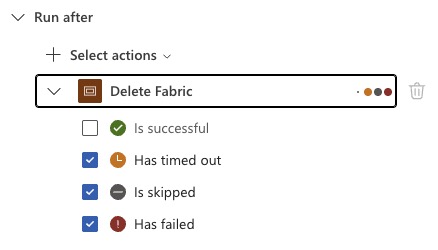
This can ping you and the user whenever capacity deletion failed for whatever reason. Which would result in a message like this.

In addition I would strongly advise setting up
- Budget & alerts in Azure Portal
- General Logic App monitoring & alert rules
This is a simple way to start, but by no means it’s an end-to-end bulletproof setup.
Simplicity and the future maintenance
If you plan to extend this chatbot with more options, my advice is to separate it into separate workflows to help with development, maintenance and debugging
- Main flow with switch
- Fabric - create capacity
- Fabric - delete capacity
- Azure - create resource group
- Azure - delete resource group
This would greatly ease the effort when scaling this solution
Azure Policies
The following policies are something I always use (only 1 in case of this automation)
- Allowed SKU for Microsoft.Fabric/capacities set to F2 - to avoid users ramping up expensive resources, as admins they can simply change the SKU
Cost Tracking
This is the screenshot I have from my subscription where I have Fabric Capacities Chatbot in a dev environment, as you can see, nice and tidy per capacity costs. In my environment I had 1 hour deletion delay, but you can configure it as you want.
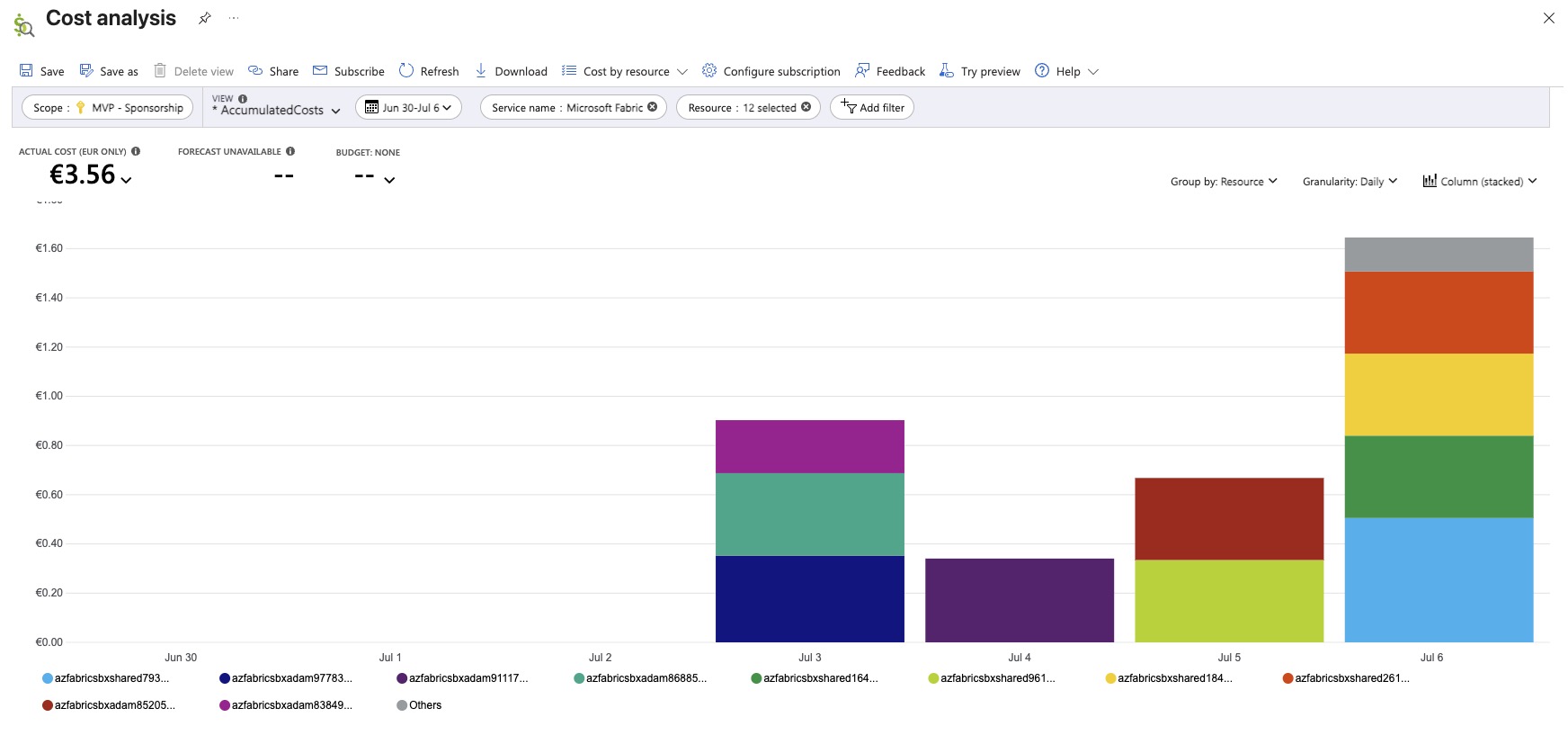
A few notes
- Ensure you have tag inheritance policy for each tag you want to track
- In Azure Logic App add tags depending on what you want to track
- Validate the costs every day for the first 2 weeks to find issues/abuse
Final Takeaway
In just a couple of hours you can enable your organization to have a quick and easy Fabric sandbox solution that enables innovation, learning and many opportunities. All of that through a nice and convenient Microsoft Teams chatbot.
Now, off you go to solve yet another organizational challenge!
Related Reading
- My previous post on Azure Sandboxes Chatbot with Azure Logic Apps
- Use Azure Logic Apps with managed identities
- What is Microsoft Fabric
- Azure Logic Apps pricing
- Azure Logic Apps documentation