Highlight
Are your tired of parametrizing dozens of pipelines via templates, maybe you want a more metadata driven approach, or simply you are hitting ADF temmplate parameter limits. If yes, this blog entry is for you.
Intro
If you manage large data factories, and you’ve been hit by any of following challenges,
- Azure Data Factory 256 template parameters limit
- Hundreds of parameters to override when deploying your factories
- Dozens of global or shared parameters
- A lot of change management effort to change many parameters in many places
- Changing parameter without redeploying entire data factory
then this is for you.
Solution
The clean solution is to move pipeline configuration into an external table. That table becomes the single source of truth for pipeline options, dataset mappings, file locations, and environment-specific values.
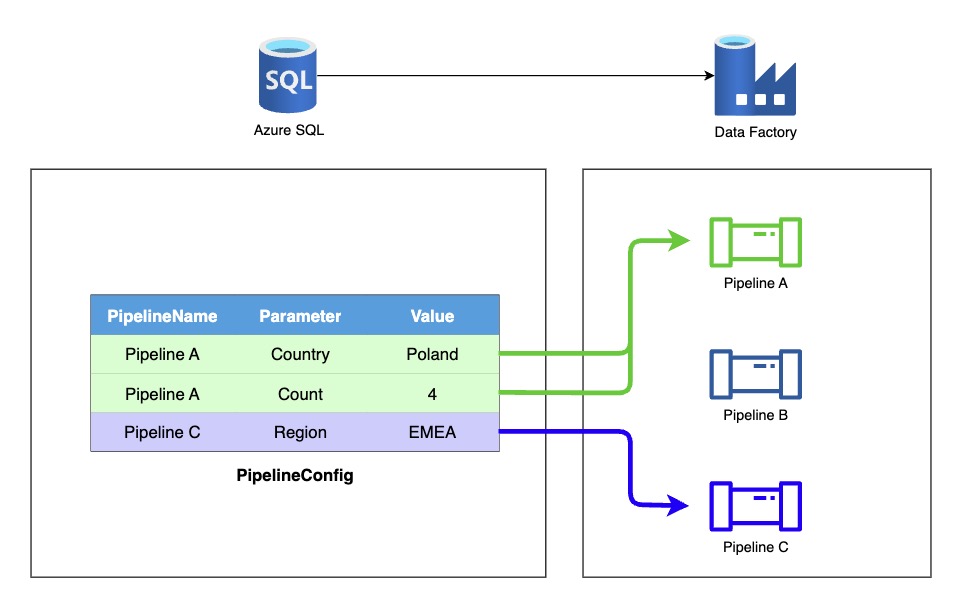
Using an external mapping/config table lets you:
- keep ARM templates lean and stable
- avoid 256 parameter limits
- update configuration without redeploying entire data factory
- reuse metadata across multiple pipelines
Alternative metadata storage options
- Microsoft Fabric Lakehouse / DB
- Azure Storage Tables
- Azure Cosmos DB
Implementation
The high-level flow is:
- create an external table for pipeline metadata
- populate it with pipeline/parameter mappings (add config)
- read the table from ADF using a lookup activity
- map returned values into pipeline parameters and activities
Details
Table Creation and Adding metadata
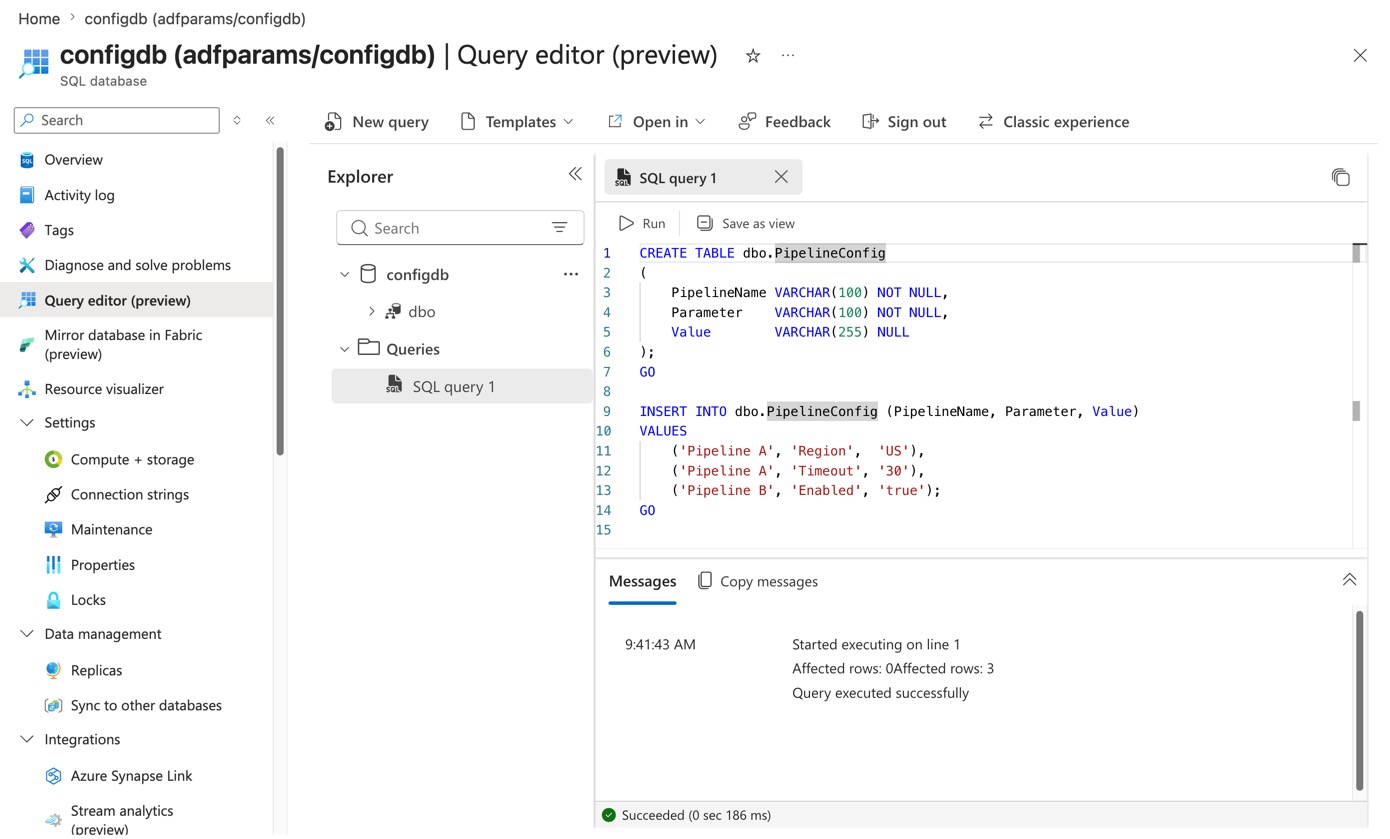
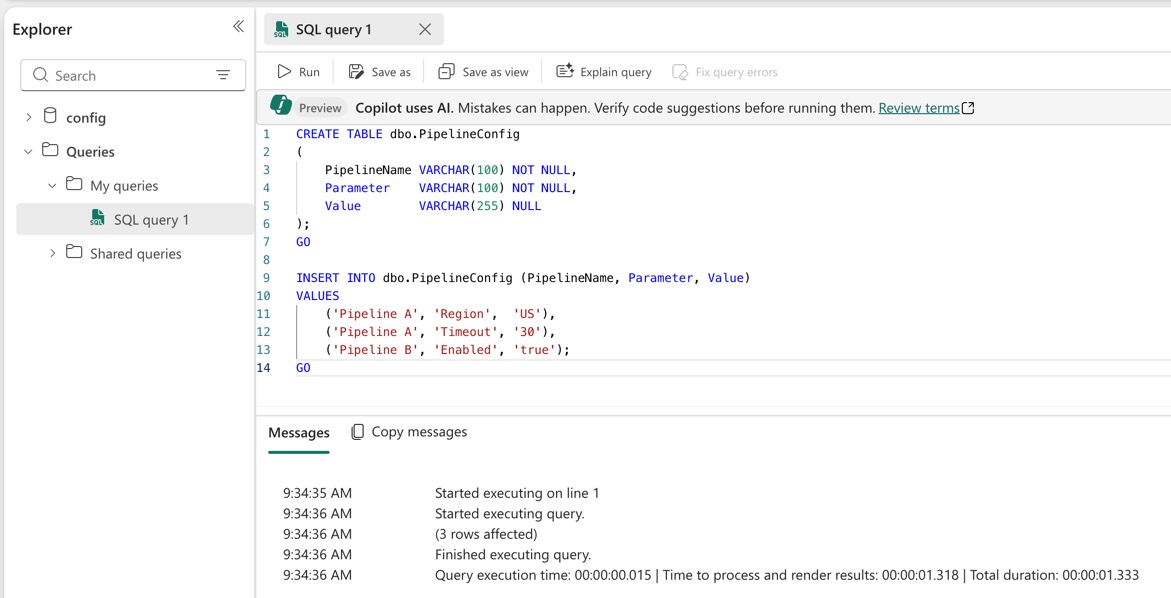
Create a simple metadata table.
CREATE TABLE dbo.PipelineConfig
(
    PipelineName VARCHAR(100) NOT NULL,
    Parameter    VARCHAR(100) NOT NULL,
    Value        VARCHAR(255) NULL
);
GO

INSERT INTO dbo.PipelineConfig (PipelineName, Parameter, Value)
VALUES
    ('Pipeline A', 'Region',  'US'),
    ('Pipeline A', 'Timeout', '30'),
    ('Pipeline B', 'Enabled', 'true');
GO
Example usage (Azure SQL)
Example usage (Fabric SQL)
Alternatives
You can use different metadata storage options like Table Storage or Cosmos DB, it’s really yp to you. I like SQL as it provides a bit more control over the data and schema + more rich query language.
(ADF) Adding Managed Identity reader permissions
Note: This step is NOT required in Microsoft Fabric.
Ensure ADF can connect to SQL and read the data. You can technically use SQL auth, but it’s not recommended these days.
CREATE USER [adf_name] FROM EXTERNAL PROVIDER;
USE db_name;
ALTER ROLE DB_DATAREADER ADD MEMBER [adf_name];
Example usage
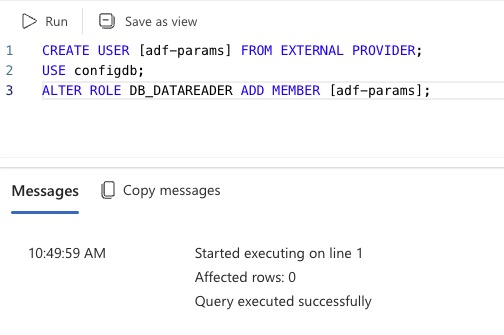
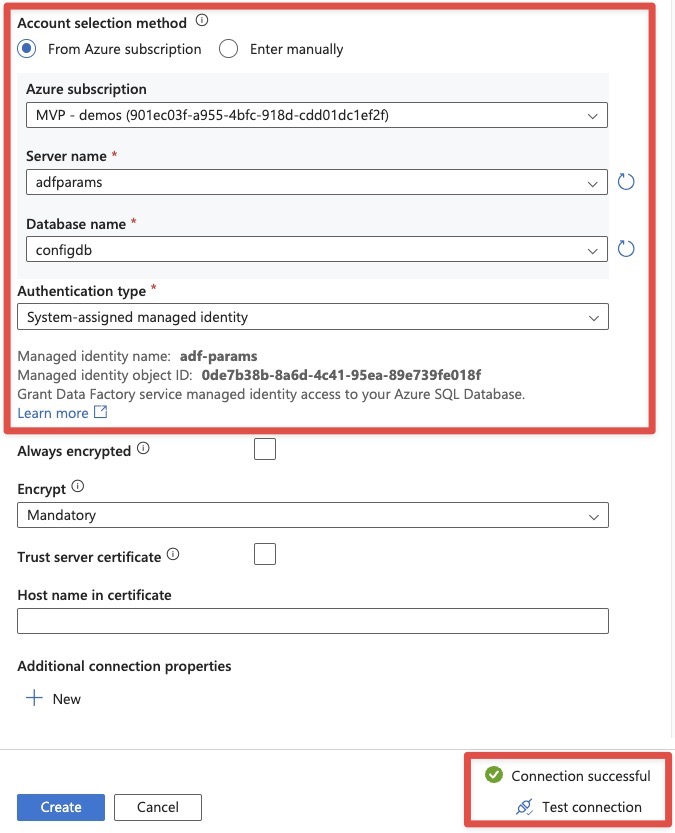
Now add a new linkedservice to Azure SQL using managed identity as authentication. Ensure database name is set, otherwise it will fail trying to connect to master, which it has no permissions to do so.
Azure Data Factory linked service
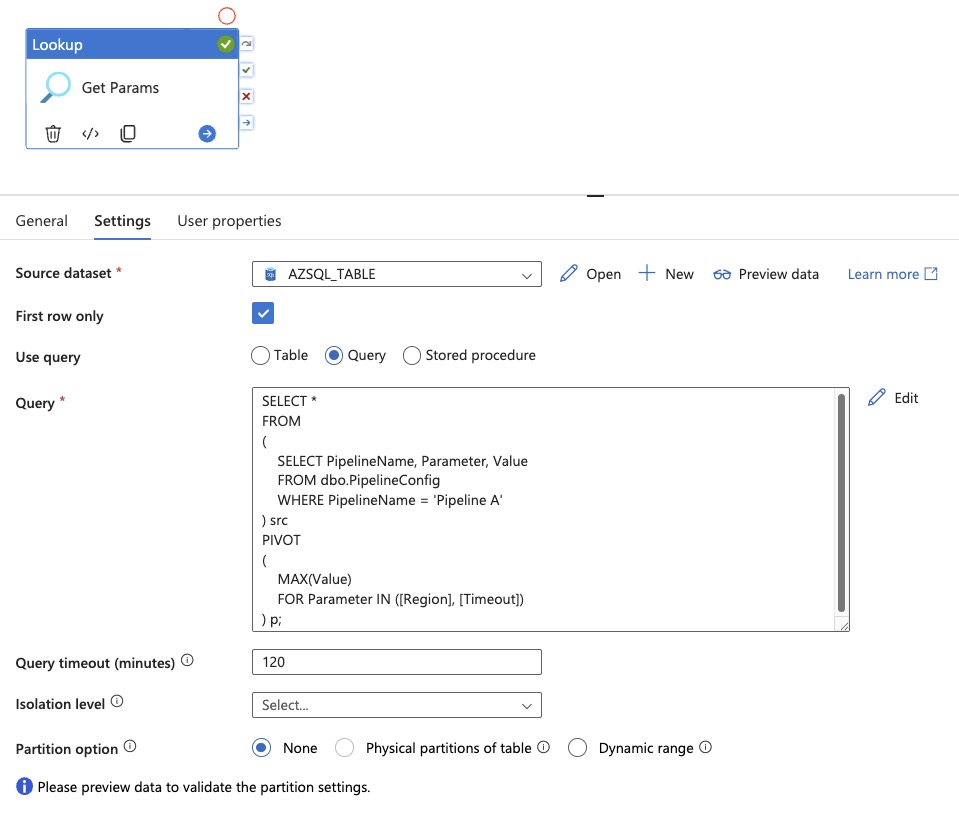
Lookup
Lookup query
SELECT *
FROM
(
    SELECT PipelineName, Parameter, Value
    FROM dbo.PipelineConfig
    WHERE PipelineName = 'Pipeline A'
) src
PIVOT
(
    MAX(Value)
    FOR Parameter IN ([Region], [Timeout])
) p;
Azure Data Factory
Microsoft Fabric
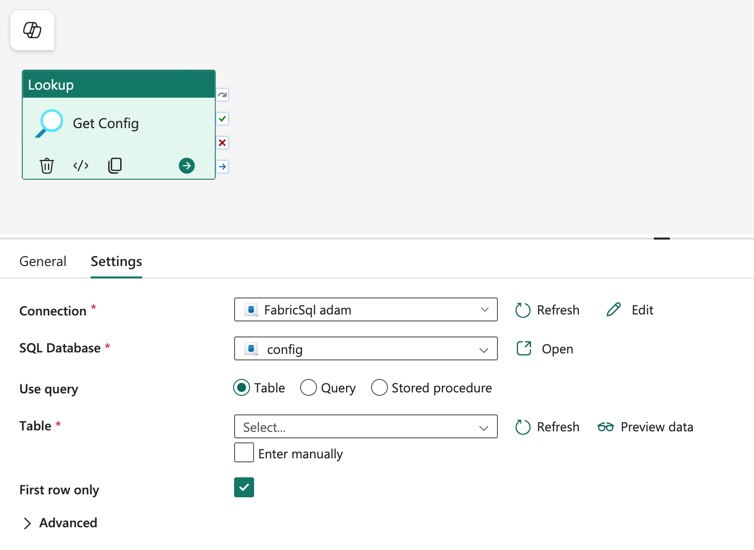
If you want you can use query which automatically prepares the pivot.
DECLARE @PipelineName sysname = 'Pipeline A';
DECLARE @cols nvarchar(max);
DECLARE @sql  nvarchar(max);

SELECT @cols = STRING_AGG(QUOTENAME(Parameter), ',')
FROM
(
    SELECT DISTINCT Parameter
    FROM dbo.PipelineConfig
    WHERE PipelineName = @PipelineName
) p;

SET @sql = N'
SELECT PipelineName, ' + @cols + N'
FROM
(
    SELECT PipelineName, Parameter, Value
    FROM dbo.PipelineConfig
    WHERE PipelineName = @PipelineName
) src
PIVOT
(
    MAX(Value)
    FOR Parameter IN (' + @cols + N')
) p;';

EXEC sp_executesql
    @sql,
    N'@PipelineName sysname',
    @PipelineName = @PipelineName;
Testing
Now just testing remains
Azure Data Factory
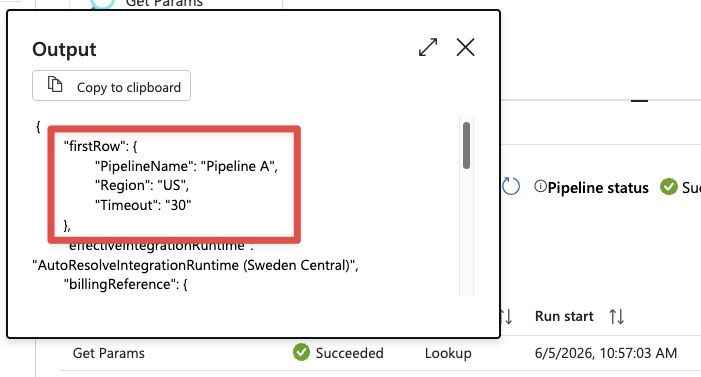
Microsoft Fabric
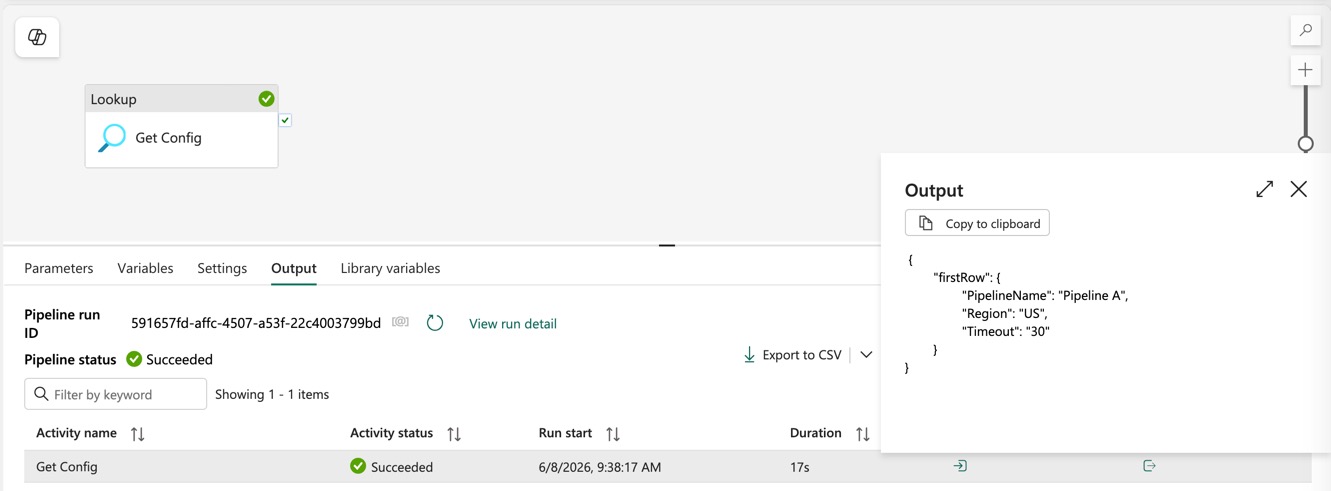
Using the values in your pipelines
Now it’s really as simple as
@activity('Get Params').output.firstRow.<paramName>
Like so
@activity('Get Params').output.firstRow.Region
CICD?
If you plan to deploy this via CICD, remember to also deploy metadata of this table alongside the Data Factory to avoid human mistakes.
Deploying Azure SQL DB is not part of this blog because it’s fairly common practice, but it also depends heavily on the choosen DevOps tool.
Conclusion
This is a very scalable and mature approach to metadata driven pipeline management. Instead of thousands of parameters all over, a single config table to manage them all. You can also define global parameters like this too!
Related Reading
- Azure Data Factory parameterize your pipeline
- Use Azure managed identity with Azure Data Factory
- Azure SQL Database authentication with managed identity
- Deploy resources with Azure Resource Manager templates
- Create metadata-driven data integration solutions in Azure Data Factory
Happy building! 🚀